File Manager
Open Kwiq's File Manager as a standalone activity from any launcher. Browse, copy, move, rename, extract ZIPs, edit text, and manage media without leaving your current home screen.
 Kwiq
Kwiq
Fast Android launcher
Kwiq combines universal search, a capable file manager, desktop and gaming modes, an offline keyboard, and deep Material You customization in one launcher.
Overview
Kwiq can be a focused home screen, a file workspace, a compact desktop, or a controller-friendly game hub. Each feature remains configurable from the launcher settings.
Modular by design
Kwiq is not just a launcher. Every major feature is a standalone Android component that can be used independently, with or without Kwiq as your home screen. Mix and match what works for you.
Open Kwiq's File Manager as a standalone activity from any launcher. Browse, copy, move, rename, extract ZIPs, edit text, and manage media without leaving your current home screen.
Launch Gaming Mode directly — a fullscreen, controller-friendly hub for Android games and ROMs. Connect a gamepad, browse your library, and play without Kwiq as your default launcher.
Turn your phone into a desktop workspace on landscape or external displays. Floating windows, taskbar, Start menu — all available as a standalone activity from any launcher.
Enable Kwiq as your system keyboard and use it everywhere, in every app, regardless of your launcher. Offline suggestions in PT, EN, ES, with privacy-focused anonymous mode.
Activate the Kwiq Live Wallpaper from the Android wallpaper picker. It runs as a system WallpaperService independently of the Kwiq launcher, with slideshow, slots, and battery liquid indicator.
Set static wallpapers for Home, Lock, or both screens from any launcher. Kwiq's wallpaper picker activity works standalone, with crop and source selection.
Universal search
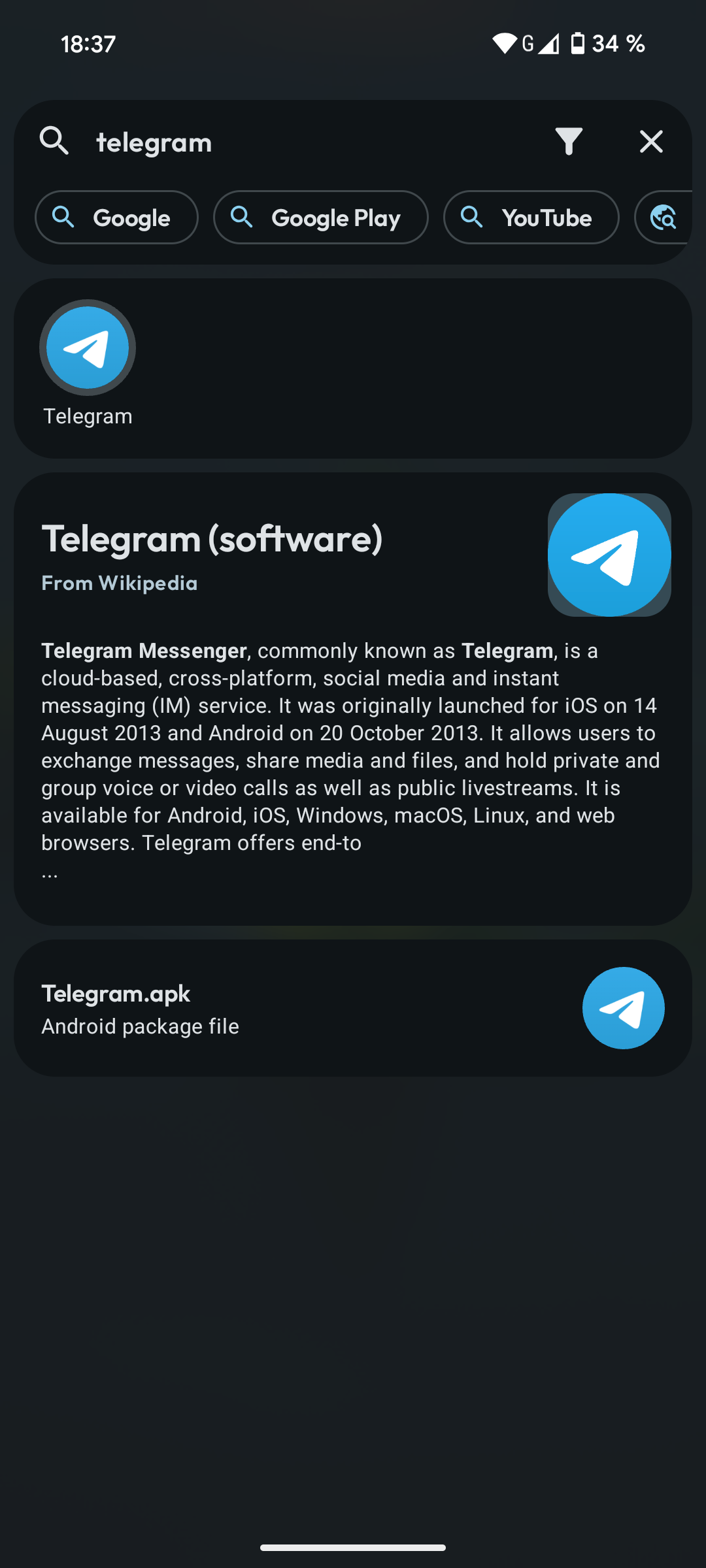
Search apps, shortcuts, contacts, calendar events, files, and launcher settings with debounced fuzzy matching that ignores accents and spaces.
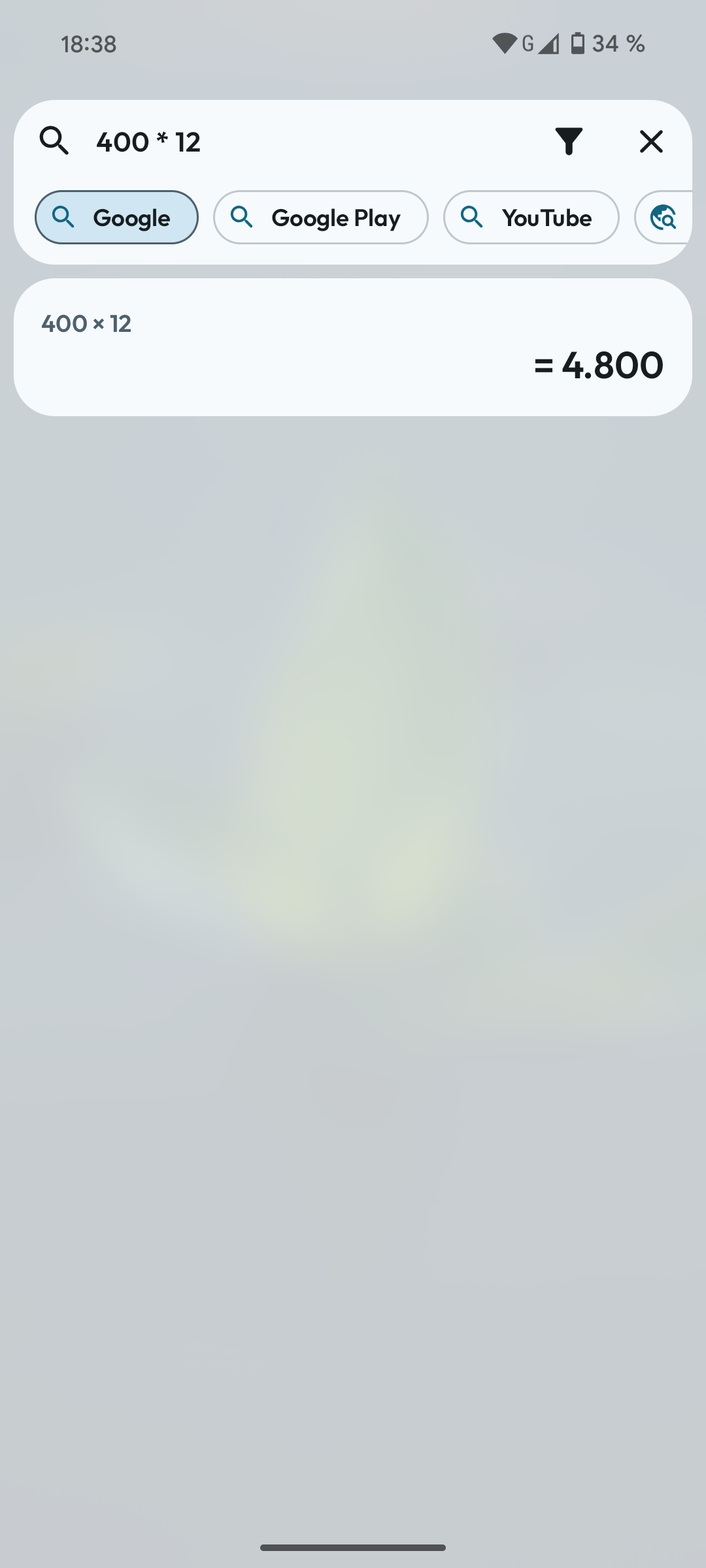
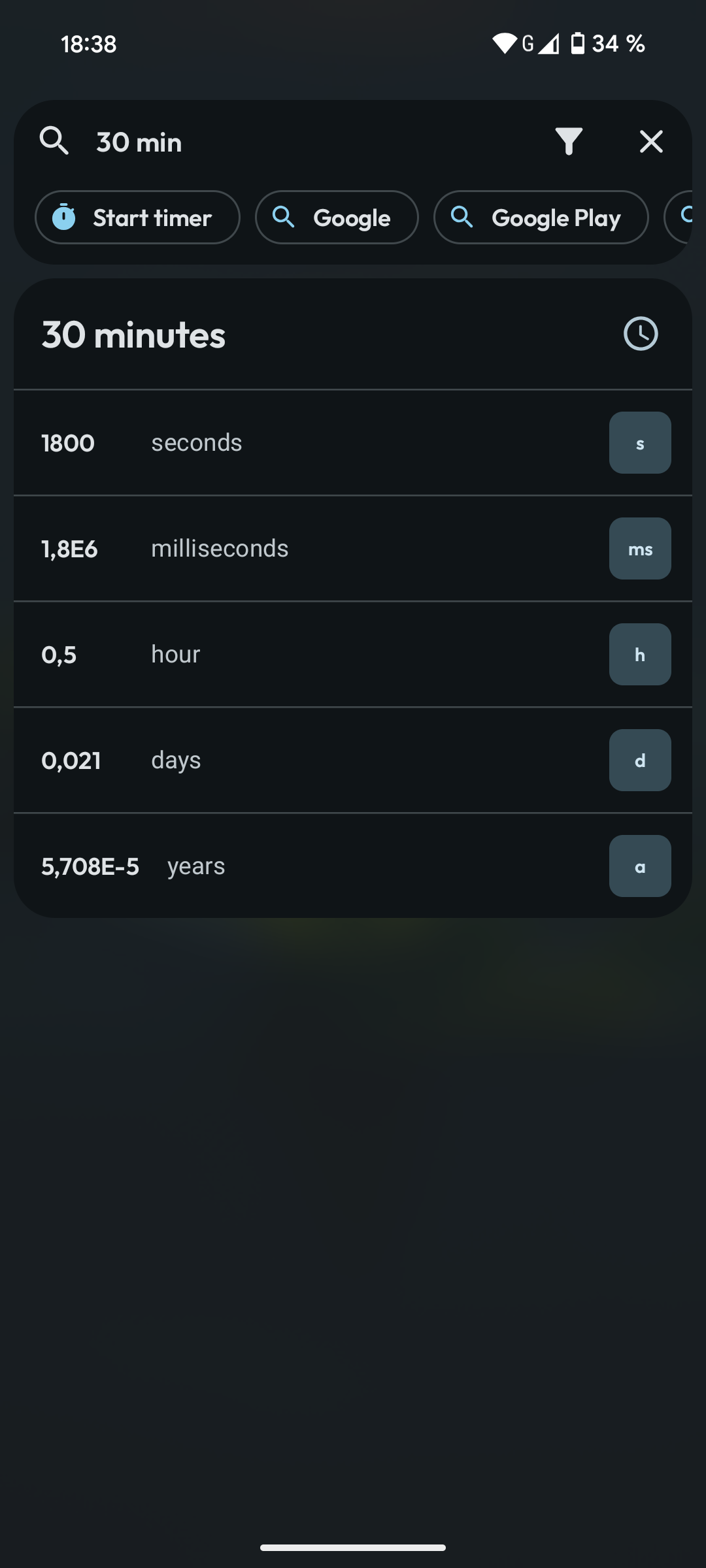
Recognizes math, URLs, email addresses, and phone numbers. Open links, compose email, call, send SMS, save a contact, or message through compatible installed apps.
Send a query to the browser, Google, Google Play, YouTube, Spotify, YouTube Music, or Google Maps. Voice input is available from the device microphone.
Choose Kwiq as your Android personal assistant, then long-press Home to jump straight into its global search from anywhere.
A Home screen with context
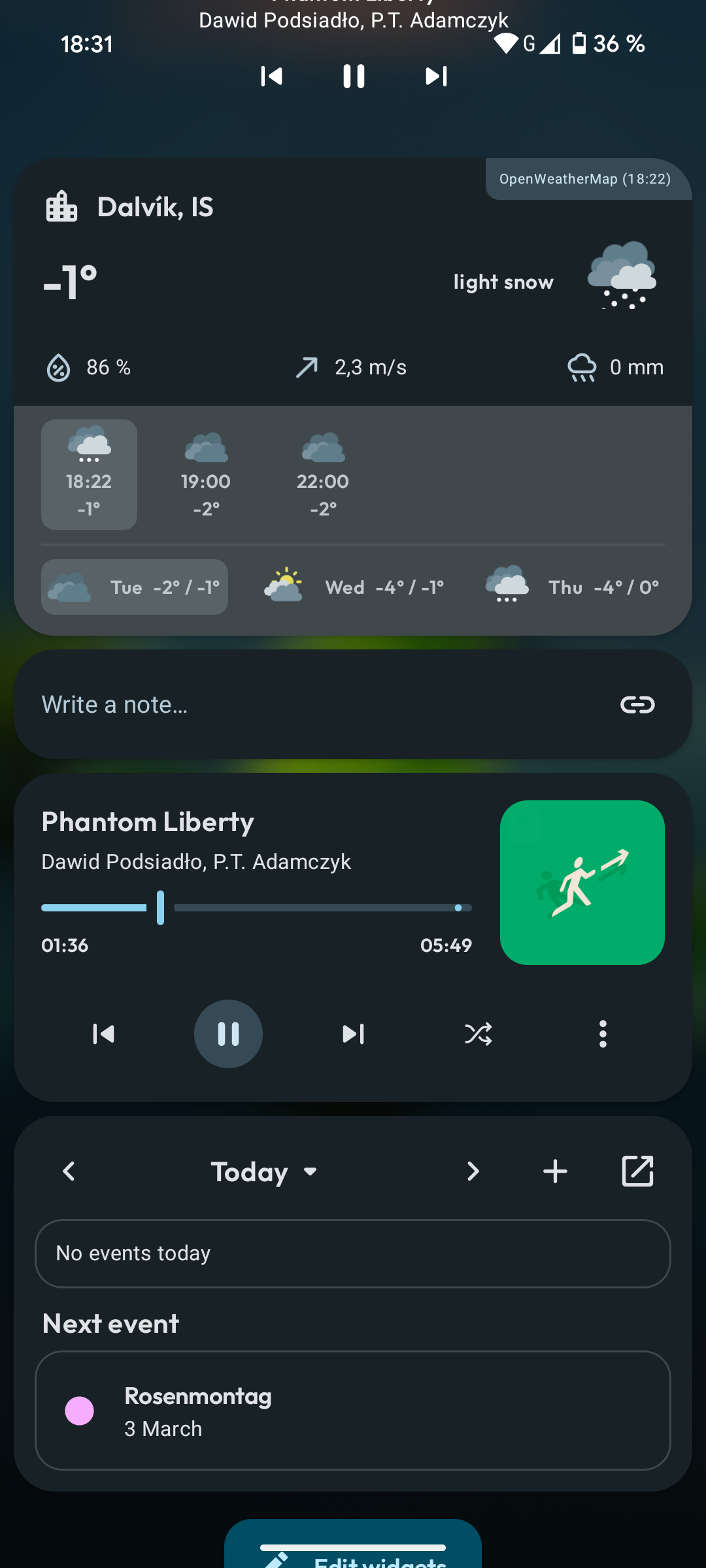
See the time, weather, upcoming plans, favorite people, recent files, and the apps you actually use — without turning your Home screen into clutter.
Pin the Android widgets you love alongside Markdown notes. Move and resize them until the screen feels made for you, not for everyone.
Group apps the way your brain works: by hobby, task, mood, or anything else. Give each category a color and icon so you recognize it at a glance.
Your files, under control
Jump straight to common folders, browse in a clean list or grid, enjoy a gallery for media, and sort the view around the file you are trying to find.
Move, rename, share, delete, zip, extract, create a folder, or start a note without bouncing between apps. Multi-select makes cleanups feel quick.
Read or write notes and Markdown, enjoy photos and music, check the details behind an image or track, and keep a media queue ready to play.
Give important folders a color and badge, then hide a file or folder with one action. The same eye that reveals hidden apps can reveal it again; the gallery always skips hidden paths and .nomedia folders.
Apply supported ROM patches right on your device, optionally check compatibility, and save the finished ROM ready for your library.
When you switch to Desktop mode, your internal storage is right there — no special folder or extra setup required.
Connect to FTP or WebDAV servers and browse, upload, download, rename, delete, and transfer files between your device and remote hosts — all from inside the File Manager. Save multiple server profiles for quick switching.
Little tools, big convenience
Show, hide, and reorder every quick tool in the footer. When there is not enough room, simply scroll the bar horizontally.
Tap to open Kwiq's global search. Long-press to open your recent search history.
Tap to toggle the torch. Long-press for a compact strobe slider with Off, 5 Hz, 15 Hz, 50 Hz, 90 Hz, and On; every setting except Off turns on the light.
Tap to keep the screen awake or return it to normal. Long-press to choose how long Caffeine should stay active.
Tap to start or stop local MP4 recording. Long-press to configure quality, frame rate, audio, facecam, and shake-to-stop.
Tap to enter Gaming. Long-press for the five most recently used Android games and ROMs, using the same recents list as the Gaming home.
Tap or long-press to open an available camera app on the device.
Tap to lock the device. Long-press to open the permission settings used by this action.
Tap to open Kwiq settings. Long-press to open the Android system settings.
Tap to manage wallpapers. Long-press to advance to the next wallpaper in the active list and restart the automatic slideshow timer.
See active notifications in Kwiq when you allow it, and optionally show the current battery level as liquid on the Live Wallpaper lock screen.
Keep the weather on Home, refreshed on the schedule you choose for the place you set.
Save your Kwiq setup and managed wallpapers in one backup, then restore the feeling of home whenever you move or reset your device.
Turn your device into an HTTP file server accessible from any browser on the same network. Configure the port, root directory, and optional password protection. Launch apps from the dashboard header menu, search online wallpaper providers, manage users, and access the QR code for instant sharing. Prefer encrypted access? The dashboard also runs over HTTPS with a self-signed certificate, and you can sign in with your fingerprint or face.
Make Kwiq unmistakably yours
Choose light, dark, or system theme; let your wallpaper set the accent color or pick one yourself; and choose the icon shape that feels right.
Give portrait, landscape, light, dark, gaming, and lock-screen moments their own look. Crop, soften, and rotate images so every transition feels intentional.
Start with Kwiq's library, your gallery, a solid color, or supported online sources. Save complete looks as presets and take them with you.
Live Wallpaper
The Kwiq Live Wallpaper turns your device into a dynamic canvas with context-aware slots, configurable slideshows, online sources, and a battery liquid indicator — each with its own position, opacity, and duration settings.
Assign different wallpapers for Light Portrait, Light Landscape, Dark Portrait, and Dark Landscape. Kwiq automatically picks the right one based on your theme and device orientation. When a slot is empty, it falls back intelligently through the remaining slots.
Each wallpaper in a slot can have its own display duration (5 seconds to 1 hour). The slideshow loops automatically, and you can advance manually at any time. Every image remembers its place in the sequence and its crop settings.
Choose from Kwiq's bundled library, your device gallery, a solid color, or online providers: Wallhaven, Waifu.im, Unsplash, Pixabay, Pexels, Safebooru, Wikimedia Commons, Openverse, Picsum Photos, and LoremFlickr. Some providers support additional filters like category, purity, image type, and orientation. Unsplash, Pixabay, and Pexels require your own API key.
Save complete wallpaper setups as presets — all four slots with their images, metadata, and crop settings. Presets are stored as folders in your device storage, making them easy to back up, share, import, and export as ZIP files.
Turn your lock screen wallpaper into a subtle battery gauge. The liquid fill type, color, and wave animation reflect your current battery level — a beautiful way to stay informed at a glance.
Use the standalone picker to set traditional static wallpapers for the Home screen, Lock screen, or both. Crop, zoom, and pan each image to fit perfectly before applying.
Every wallpaper has its own sequence position, overlay opacity, display duration, pan offset, and zoom level — so each image looks exactly the way you configured it.
Wallpaper presets and battery liquid preferences are included in Kwiq's backup system. Switching devices or resetting your phone? Restore your entire wallpaper setup from a single .kwiqbkp file.
Icon Packs
Kwiq supports third-party icon packs using the standard ADW/Lawnchair format. Install any icon pack from the Play Store, then apply it from Kwiq settings or the web dashboard. Icons update instantly across the launcher, desktop, and quick tools.
Any icon pack that supports the ADW or Lawnchair standard will work. Install it like a regular app, then open Kwiq settings to activate it.
In Kwiq Settings → Icon Packs, browse all installed packs, select one to activate, or revert to the original Kwiq icons. Some packs offer a built-in configuration activity that you can open directly.
The Icon Packs settings screen shows a preview grid of your apps with the active pack applied, so you can see how icons will look before you commit.
AI agents can list, apply, and clear icon packs through Kwiq's embedded MCP server — perfect for remote management via the self-hosted dashboard.
The self-hosted dashboard includes an Icon Packs page where you can browse installed packs, see which one is active, and apply or clear packs remotely.
Pet
Off by default — turn it on in the setup wizard or in settings. Once active, a pet wanders your Live Wallpaper, Daydream and the web Dashboard in every direction, waves when you tap it, and reacts to notifications and MCP activity — all compatible with the OpenPets community pet format.
The same pet walks across your Live Wallpaper and Daydream (screensaver), and can optionally join the self-hosted web Dashboard too — toggle each surface independently.
Tap the pet for a wave, or tap any empty spot and it'll walk right over — whatever else is on screen there. Drag it anywhere (it faces the direction you're dragging), pinch to resize, or press and hold to open your configured AI assistant. On the Daydream, a double-tap dismisses it — a single touch just talks to the pet.
New notifications show up as a speech bubble above the pet (now sized to fit longer text), with a wave to catch your eye. A critical battery level, music playing, and an open search panel change its mood too.
When an AI agent uses Kwiq's embedded MCP server, the pet acts it out live: running while reading, thinking while writing, waiting on heavier calls, and jumping for joy or wincing depending on the result.
Uses the same pet.json + spritesheet format as the open-source OpenPets project, so pets made for that community work here without any conversion.
Self-hosted server
Turn your device into an HTTP file server. Launch installed apps directly from the dashboard header menu, search online wallpaper providers, access files and manage storage from any browser on the same network — with user authentication and role-based access control.
Browse directories with list, grid, and gallery views. Read and edit Markdown, view images, play media, and navigate your device storage from any browser — just like the built-in File Manager.
Built-in login page with session-based tokens, plus optional biometric login with fingerprint or face. Admin and Visitor roles let you control who can upload, delete, or just browse. Tokens are cryptographically random and expire after 24 hours.
Serve the dashboard over encrypted HTTPS with a self-signed certificate — no setup needed — and let Admin sign in with fingerprint or face right from the browser.
Add, edit, and remove users directly from Kwiq settings. Each user has a username, password, and role (Admin or Visitor). No external database needed — everything is stored on your device.
Upload files in chunks (resumable), create folders, rename, delete, and batch-download multiple files as ZIP. All file operations require Admin privileges.
When the server is running, long-press the quick tool to view the QR code or copy the server URL. Share it with anyone on your network for instant browser access.
Kwiq Auth
Store your two-factor codes right on your device. Kwiq Auth handles TOTP and HOTP from your favorite services, shows your SMS and email verification codes in one place, and keeps everything sealed in your device's secure keystore — with backup and restore whenever you need them.
Scan a QR code or add a secret manually to generate time-based or counter-based codes for any service that supports authenticator apps — Google, GitHub, and thousands more.
Kwiq already reads your SMS and email verification codes. Kwiq Auth brings them together with your TOTP codes on a single screen.
Secrets are encrypted with AES-GCM using keys stored in the Android Keystore. Add a biometric or PIN lock to keep the app sealed until you unlock it.
Export an encrypted backup or a standard otpauth list, then import them on a new device — your codes follow you without losing the security.
Admins can view codes and add new entries from the self-hosted Dashboard — and AI agents can manage everything through MCP tools.
Work bigger
Desktop mode gives landscape and external displays a calmer, more spacious way to work — with a taskbar, Start menu, desktop items, and live notifications close by.
Keep your favorite tools in a compact taskbar and open apps from a familiar Start menu that follows the categories you already created.
Move, resize, minimize, and maximize Kwiq's file and text windows until the workspace fits the task in front of you.
Connect a secondary display and choose its role: normal view, desktop workspace, or gaming screen. Let landscape open Desktop automatically if that is your rhythm.
Play without the friction
Connect a Bluetooth or OTG controller, open Gaming with its mode button, check that every input feels right, and let landscape launch the experience for you.
Bring Android games and ROMs together by platform or category, keep favorites and recents close, and let Kwiq help discover and configure compatible emulators.
Give every game the cover and details it deserves. Use local images or, with your own credentials, look up metadata through IGDB and TheGamesDB.
Open Xbox Cloud Gaming and find compatible remote-play apps already installed on your device from the same gaming home.
Type better everywhere
Use Kwiq as your Android keyboard with Portuguese, English, and Spanish suggestions, local learning, and autocorrect that stays available when the signal does not.
Reach symbols, emoji, Markdown actions, arrows or WASD, and even analog-stick navigation without fighting your way through layers of keys.
Switch language from the spacebar, tune long-press timing and key color, use anonymous mode, and turn pinned notes into reusable paste templates.
You stay in control
Kwiq asks for access only when a feature needs it — like contacts for calling, media for browsing, or the microphone for voice search. Online services only connect when you choose to use them, and some let you bring your own API key.